How Windows makes Half‑Life DPI‑aware via the hidden compatibility layer
Vanilla hl.exe is marked DPI‑aware by Windows AppCompat database using a HighDpiAware fix matched on version‑info—no manifest in the binary required.
Hi. In this short note I want to show how Windows quietly marks the classic Half‑Life launcher (hl.exe) as DPI-aware application even though the binary itself doesn't ship a DPI manifest or call any DPI APIs originally. The trick lives in the Windows Application Compatibility layer. 1
This caught me off guard and at first I was very confused about what's going on. Turns out that there is a niche feature in Windows called the WCL (Windows Compatibility Layer) which essentially applies compatibility fixes to applications without requiring any changes to the application itself.
What is the Windows compatibility layer?
Windows ships a large compatibility database (SDB files) under C:\Windows\AppPatch. During process creation the loader consults these databases (via apphelp.dll) and, when a rule matches, it applies "fixes" (a.k.a. shims) 2 such as forcing DPI awareness, legacy DirectDraw behavior, input tweaks, etc. These fixes are transparent to the application.
Microsoft updates these SDBs through Windows updates. Vendors can also contribute entries through Microsoft's program, and enterprises can deploy their own custom databases with sdbinst.exe. You can browse the built‑in rules with the Compatibility Administrator tool from the Windows ADK.
The Half‑Life rule
When you search for Half‑Life in Compatibility Administrator (32‑bit database), you'll find an entry targeting hl.exe that applies the HighDpiAware fix. The match is not by filename alone but by version‑info fields inside the PE resource. The relevant predicates look like this:
COMPANY_NAME = "Valve"PRODUCT_NAMEmatches*Half‑Life*UPTO_BIN_PRODUCT_VERSION = 1(accepts 1.x)
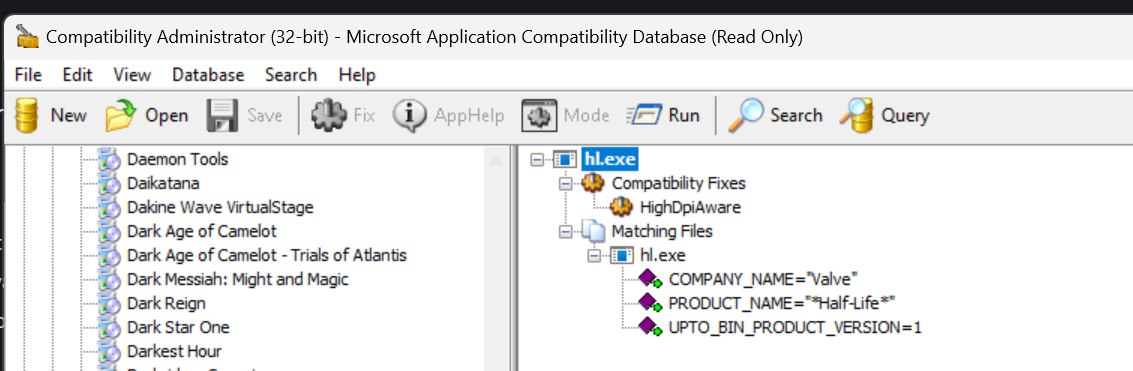
If those fields line up, the fix is applied and Windows reports the process as DPI‑aware (on current Windows builds this shows up as Per‑monitor aware in tools like System Informer).
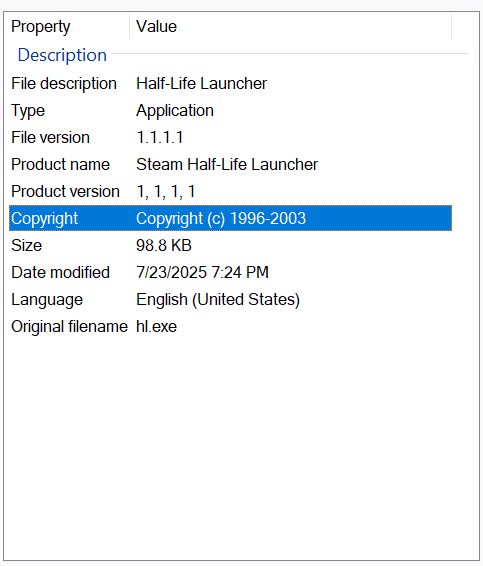 alt text
What exactly happens at launch time?
This is the high-level flow as of what happens during process creation:
CreateProcessis called; Windows NT loader initializes the process.apphelp.dllis loaded into the process and evaluates SDB rules against the target image.- Matching fixes are activated. For
HighDpiAware, Windows effectively provides DPI‑aware process behavior even if the app has no manifest. - As a result,
hl.exestarts under a DPI‑aware context and Windows reports it accordingly.
Note: hl.exe is a 32‑bit process. Matching happens against the 32‑bit (x86) AppCompat database; 64‑bit images are matched against the 64‑bit database.
Why this matters for Half-Life
Because the DPI decision is coming from the OS database, the launcher behaves as DPI‑aware out of the box on modern Windows. Closing Steam doesn't change this—it's a Windows feature, not a Steam feature. On high‑DPI displays (e.g., 150% scale) you may notice centering and non‑scaled title bar dimensions consistent with DPI‑aware apps.
What exactly is DPI?
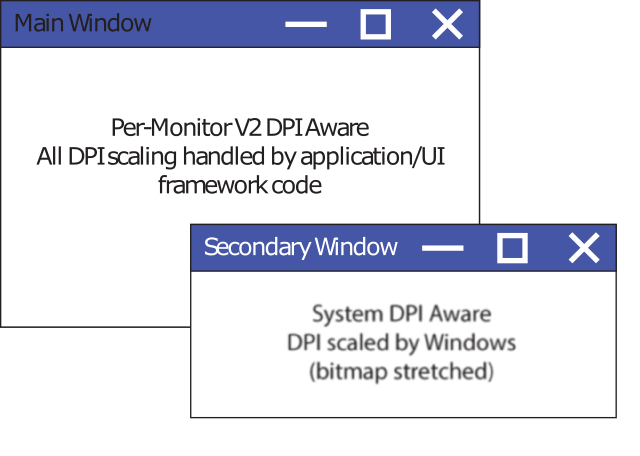
DPI (dots per inch) in Windows determines how the operating system scales UI elements and coordinates for rendering, directly affecting how applications appear on different display densities. When an app is marked as DPI-aware, Windows delivers raw pixel coordinates without applying bitmap scaling, meaning the app must handle its own sizing, layout, and font scaling to remain sharp and properly proportioned.
 alt text
Conversely, non-DPI-aware apps are scaled by Windows—often using raster stretching—which can cause blurriness or misaligned input hit-boxes. This scaling behavior also affects window metrics such as title bar height, border thickness, and positioning logic, which is why DPI awareness influences both visual fidelity and user interaction precision.
How exactly does this affect HL?
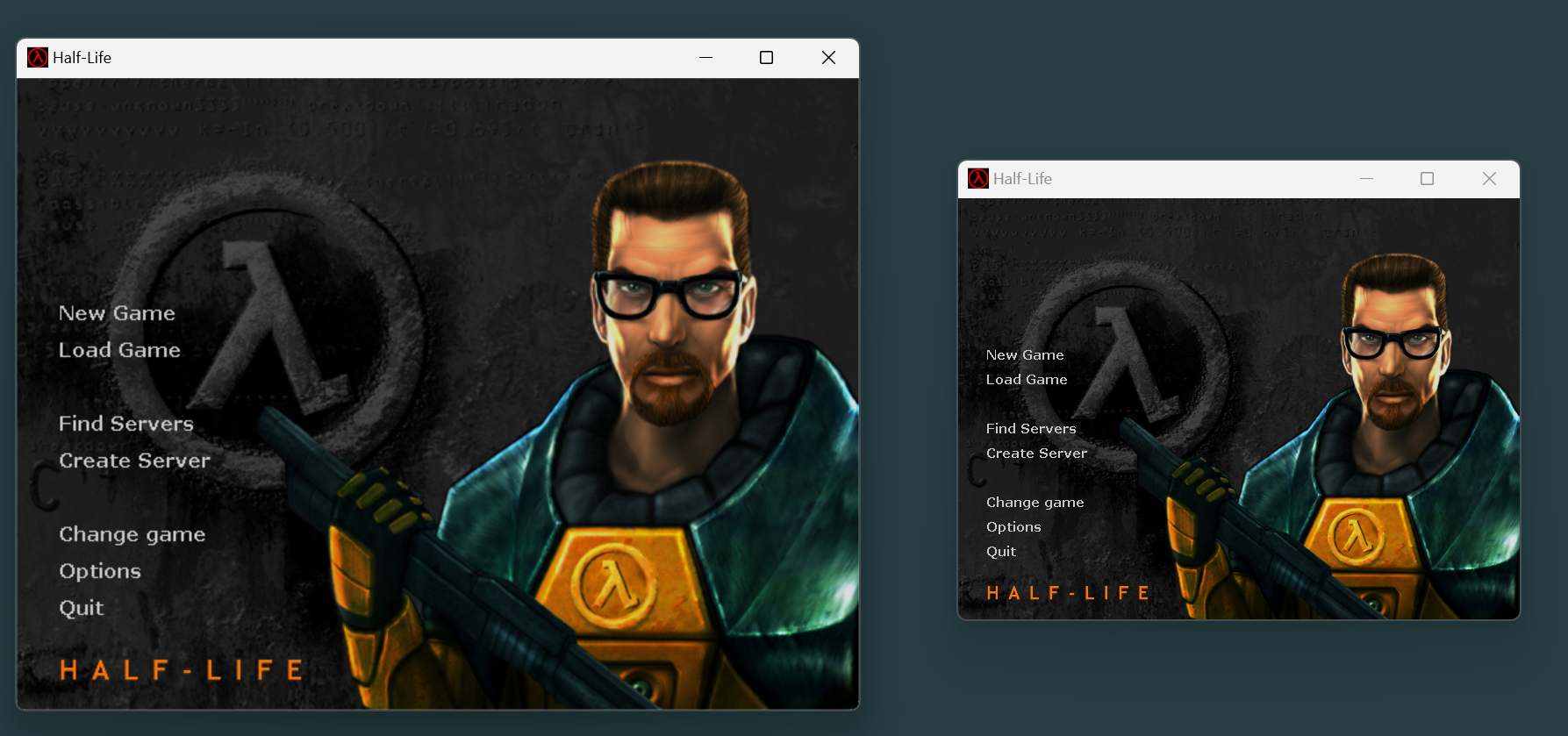
In extreme cases (i.e. when you not only rename the filename but also erase/change the file versioning) you can get the blurry version of Half-Life (left) and DPI-Aware (right). The in-game resolution is literally the same however, the window scale is just different. Also, for the DPI-unaware window (left), it fails to launch in the center of the screen but slightly to the right—this is because in the computation of the screen center there is no accountance for DPI scaling.
 alt text
Then in a task manager you can see the difference in process properties shown in the following image below.
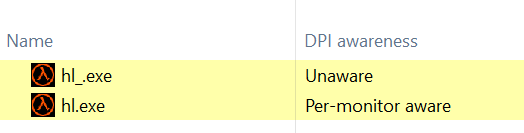 alt text
Below is the code that causes the window to center at launch; also triggering the wrong center when the DPI scaling is messed up.
void CVideoMode_Common::CenterEngineWindow(HWND hWndCenter, int width, int height)
{
    int centerX, centerY;
    SDL_Rect rect;

    SDL_GetDisplayBounds(NULL, &rect);

    centerX = (rect.w - width) / 2;
    centerY = (rect.h - height) / 2;
    centerX = (centerX < 0) ? 0 : centerX;
    centerY = (centerY < 0) ? 0 : centerY;

    game->SetWindowXY(centerX, centerY);

    SDL_SetWindowPosition((SDL_Window*)hWndCenter, centerX, centerY);
}
Conclusion
Windows carries a compatibility rule for Half‑Life that marks hl.exe as DPI‑aware via the HighDpiAware fix. The match key is the version‑info in the executable, not the filename.
That's why the vanilla launcher shows up as Per‑monitor aware on modern Windows even without shipping any explicit DPI configuration.
Notes
- The docs for the manifest can be found here; the API here.
- More details about shims can be found here: Demystifying Shims - or - Using the App Compat Toolkit to make your old stuff work with your new stuff.